
This guide explains how to set up the official Spotify integration in Home Assistant so you can control playback and browse your Spotify library from the Home Assistant UI and automations.
Table of Contents
What you’ll need
You’ll need:
- A working Home Assistant instance.
- A Spotify Premium account (Home Assistant’s official docs state the integration requires Premium; Spotify’s Web API docs now also explicitly note Premium is required).
- A Spotify-compatible playback device (anything that can act as a Spotify playback target via Spotify clients / Connect).
Create a Spotify Developer application
Home Assistant talks to Spotify using Spotify’s OAuth 2.0 flow. In Spotify terms, you create an “app” to get client credentials (Client ID + Client Secret), then Home Assistant uses those to complete authorisation.
Step 1 — Sign in to Spotify for Developers
Head to this address and log in with your spotify account: https://developer.spotify.com/
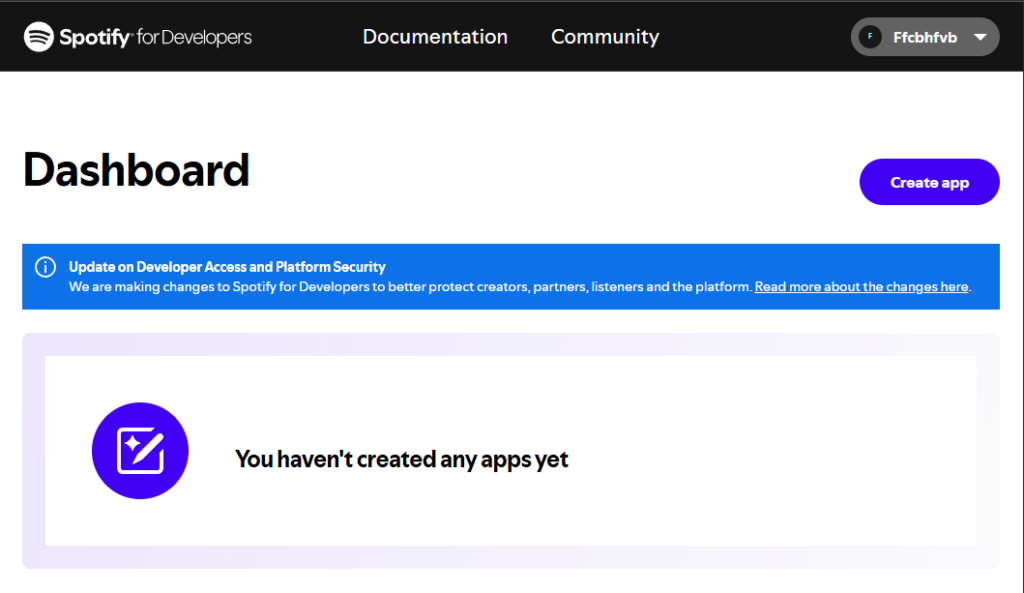
Go to Dashboard -> Create App
Step 2 — Fill out the app details
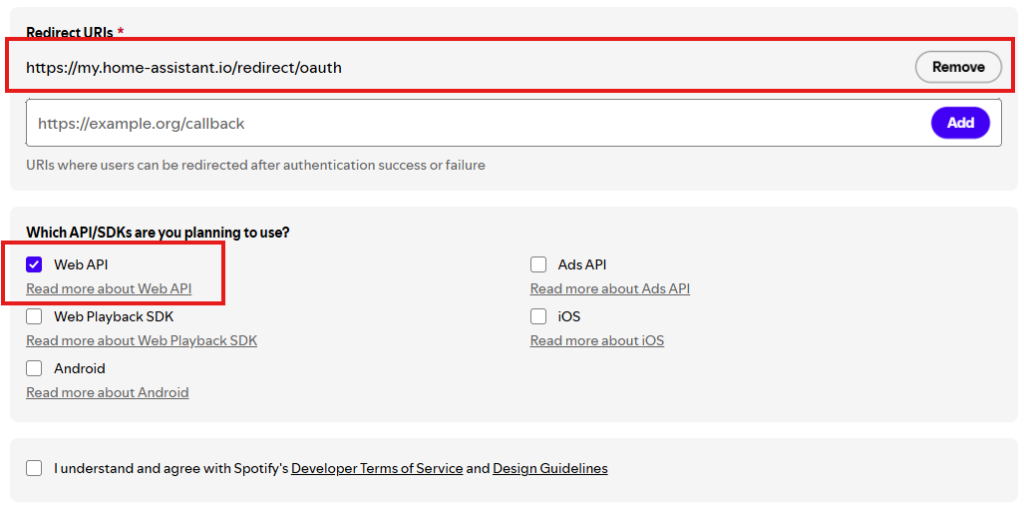
Use any name, description and website you like.
Add this Redirect URI:
https://my.home-assistant.io/redirect/oauth
For API/SDK/s Make sure to select Web API
Step 3 — Copy Client ID and Client Secret
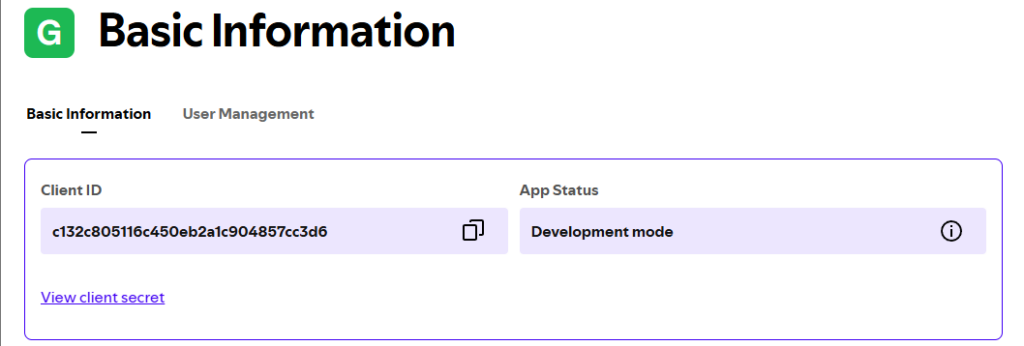
You should be took to this page, make sure to keep the Client ID and Client Secret ready.
Add Spotify credentials and link your account in Home Assistant
On your Home Assistant instance:
- Go to Settings -> Devices & services -> Add integration
- Search for the Spotify integration, then it will ask for application credentials:
- A name (anything you like)
- Your Spotify Client ID
- Your Spotify Client Secret
- Click Add
- Follow throught the next couple steps to finish the device creation and then name your device.
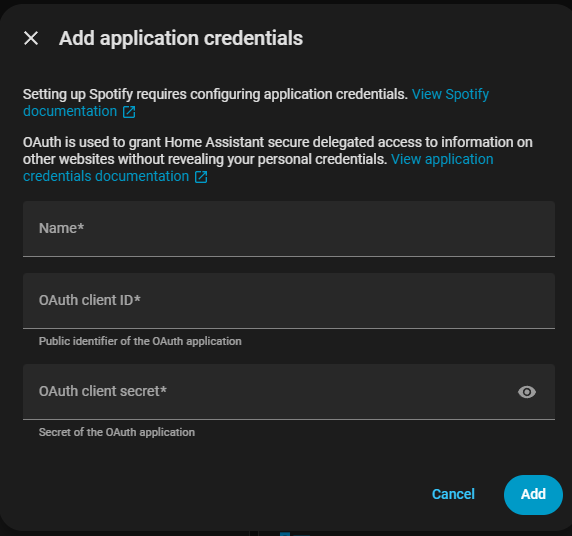
That’s it, it’s that easy. You’ve now added the spotify integration want to carry on reading for some
Using the Spotify Integration
Once Spotify has been added to Home Assistant, you can control playback using the generated media player entity.
1. Understanding the Spotify Entity
After setup, Home Assistant creates a media player entity such as:
media_player.spotify
This entity represents your Spotify account and is used in automations, scripts, and dashboards.
2. Selecting an Output Device (Source)
Before you can play anything, you must select a playback device (source).
Spotify does not directly play audio itself — it controls playback on another device (e.g. speaker, TV, phone).
⚠️ Important limitation
The Spotify API cannot start playback on a completely new device.
This means:
- The device must already be visible to Spotify
- You may need to open Spotify on that device or cast to it once
Example: Selecting a source
action: media_player.select_source
target:
  entity_id: media_player.spotify
data:
  source: "Denon AVR-X2000"
Finding available devices
You can view available sources via:
Settings → Developer Tools → States → media_player.spotify → source_list
3. How Updates Work
The Spotify integration does not update instantly.
- It polls Spotify approximately every 30 seconds
- It will also refresh when a track ends
This means:
- State changes may feel slightly delayed
- Automations should account for this timing
FAQ
For the Home Assistant Spotify integration, yes — Home Assistant’s docs state you need an active Spotify Premium account, and Spotify’s Web API docs also state Premium is required to use the Web API.
Can I connect multiple Spotify accounts?
Home Assistant supports multiple Spotify accounts and does not require creating a separate Spotify developer app for each account.
However, Spotify Development Mode imposes a five-user limit per app and requires allowlisting users, so in practice your maximum may be capped by Spotify’s rules for the app you created.
Why can’t I browse certain “Browse” categories or featured lists?
Spotify’s February 2026 Web API changes removed various Browse/category endpoints (for example “Get New Releases” and “Get Several Browse Categories”) in the new model.
How often does Home Assistant update track status?
At least every 30 seconds, with an additional poll when a track ends if it ends sooner than 30 seconds.
Credits / Links
- Home Assistant Spotify Integration: https://www.home-assistant.io/integrations/spotify/
- Spotify Web API Overview: https://developer.spotify.com/documentation/web-api
- SpotifyforDevelopers Dashboard: https://developer.spotify.com/dashboard