
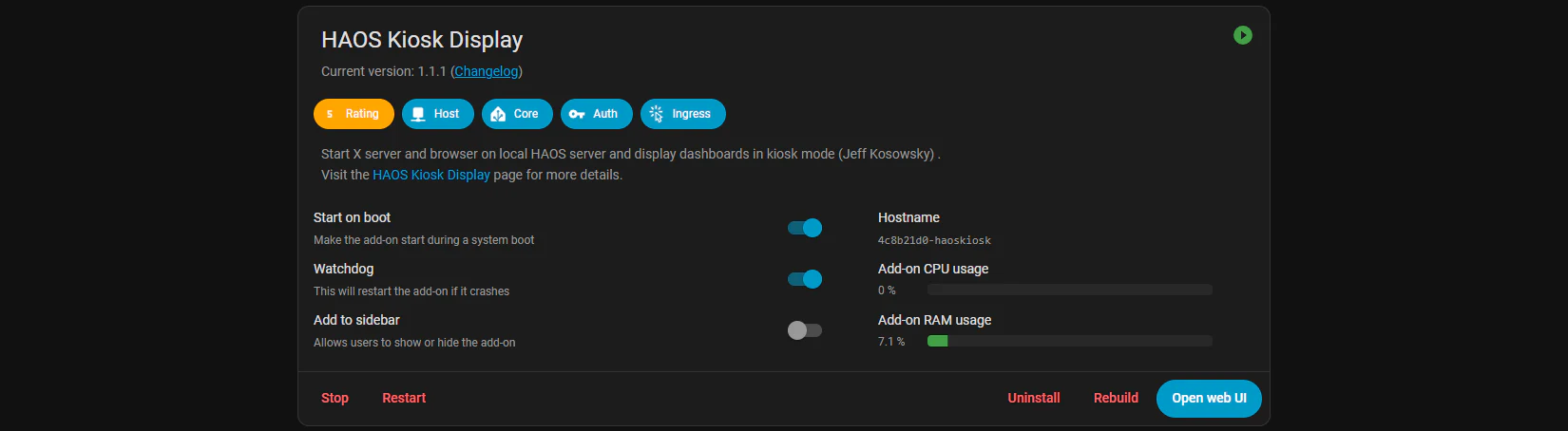
Turn Your Home Assistant Box into a Big-Screen Kiosk (No Extra PC Needed)
Want your Home Assistant dashboard on the TV or a wall-mounted touch display plugged into the same device that’s running Home Assistant OS?
With the community HAOS Kiosk add-on you can launch a full-screen Chromium “kiosk” over HDMI — no separate tablet, Pi, or desktop required. Setup takes minutes and survives reboots.
In this guide
What You’ll Need
- A device running Home Assistant OS (Home Automation Server or Raspberry Pi 4/5).
- A display connected to that device (HDMI, DisplayPort adapter).
- Your Home Assistant URL (e.g.
http://homeassistant.local:8123or the box’s IP). - The HAOS Kiosk add-on repository URL:
https://github.com/puterboy/HAOS-kiosk
Step 1 – Add the HAOS Kiosk Repository
- In Home Assistant, go to Settings → Add-ons → Add-on Store.
- Click the ⋮ (overflow menu) → Repositories.
- Paste:
https://github.com/puterboy/HAOS-kioskand press Add. - Close the dialog and refresh the store — you should now see HAOS Kiosk Display under the repositories list.
- Open HAOS Kiosk Display, and click Install
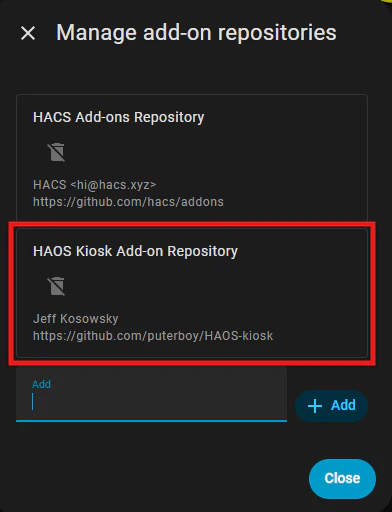
Tip: If it doesn’t appear straight away, refresh the page or try again — typos in the URL are the most common cause.
Step 2 – Create a “Kiosk” User
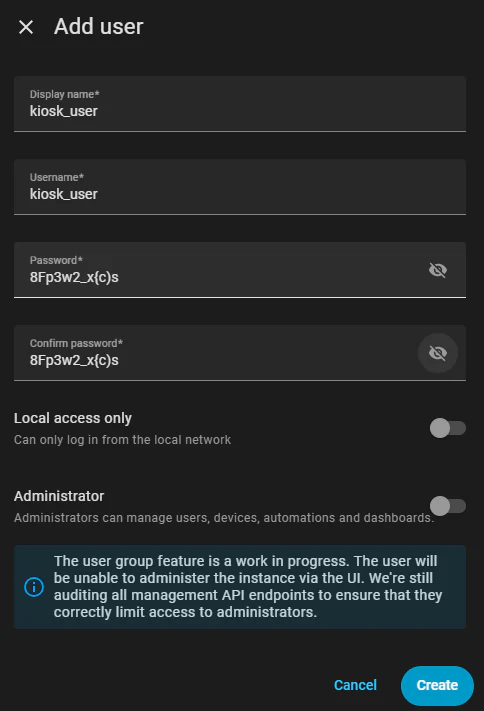
For unattended displays, use a non-admin Home Assistant user:
- Settings → People → Add person
- Create a Kiosk user with limited access, and make sure to use a strong random password.
- Log out and log in as the Kiosk user once (so the profile exists).
- Make sure you note the username and password of this user.
Step 3 – Configure the Kiosk
- Open the Configuration tab in the add-on.
- Fill out:
- URL:
http://homeassistant.local:8123 - Username / Password: Kiosk credentials
- Rotation / Scale: Adjust for screen readability
- Auto-reload / Retry: Enable to recover from reboots or slow startups
- URL:
Step 4 – Start the Add-On
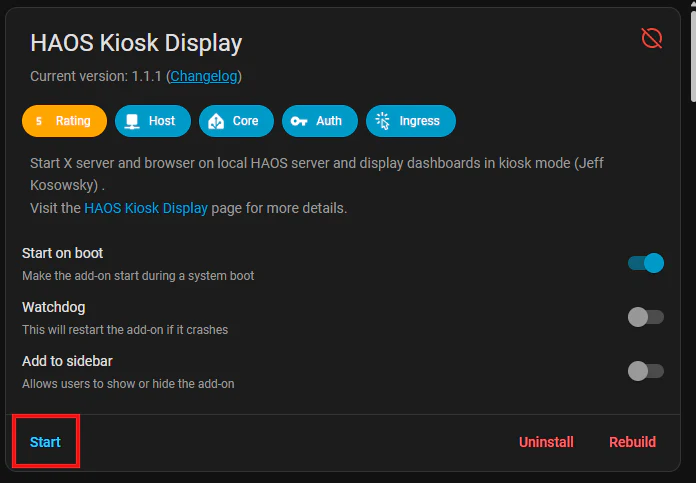
- Toggle Start on boot and Watchdog (recommended).
- Click Start.
Step 5 – Plug In and Enjoy
- Connect HDMI to your display.
- Restart the add-on (or the host).
- You should see your Home Assistant dashboard in full-screen on boot.
Troubleshooting
Add-on not showing up after adding the repo?
Double-check the URL, refresh the Add-on Store, and ensure you’re on Home Assistant OS (not just Container/Core).
Black screen / no signal on HDMI:
Verify the display is powered, try another cable/port, and confirm your device outputs to that connector (some mini-PCs have multiple display ports). Reboot the host after first install.
Touch rotation or scaling is off:
Adjust screen_rotation and device_scale_factor in the add-on config. For some touchscreens you may also need to calibrate in the add-on options.
HA starts after the browser:
Turn on retry/auto-reload in the add-on so it reconnects once HA is available.
Security & Housekeeping
- Least-privilege user: the Kiosk user should have access only to the dashboards it needs.
- No cloud exposure needed: the kiosk points at your LAN URL; you don’t need to open ports to the internet.
- Backups: the add-on config is included in regular HAOS backups.
FAQ
Can I point the kiosk at a specific view?
Yes — use a direct URL such as/dashboard/kiosk/0or your chosen view path.
Does this work on Raspberry Pi and x86?
Yes. Performance depends on GPU/driver support, but Pi 4/5 and modern mini-PCs generally handle a single kiosk screen well.
Can I use a long-lived access token instead of a username/password?
Currently, the add-on supports standard username/password login. Long-lived tokens are not officially supported yet, but have been requested and this may change in future versions.
Can I run multiple displays?
HAOS Kiosk is designed for one local display. For multi-screen walls, consider additional devices or a separate OS driving a browser per screen.
What about CPU temperature and system stats on the dashboard?
Add the System Monitor integration or the Glances add-on/integration and drop those sensors onto your kiosk dashboard.
Why This Approach?
- One box, zero faff: No second machine required
- Appliance-like: Boots directly into dashboard
- Flexible: Supports rotation, scaling, auto-login, and retry
Credits
Community Add-on:
🔗 HAOS Kiosk Repository
Tested with HAOS on Raspberry Pi 4/5 and x86 mini-PCs.