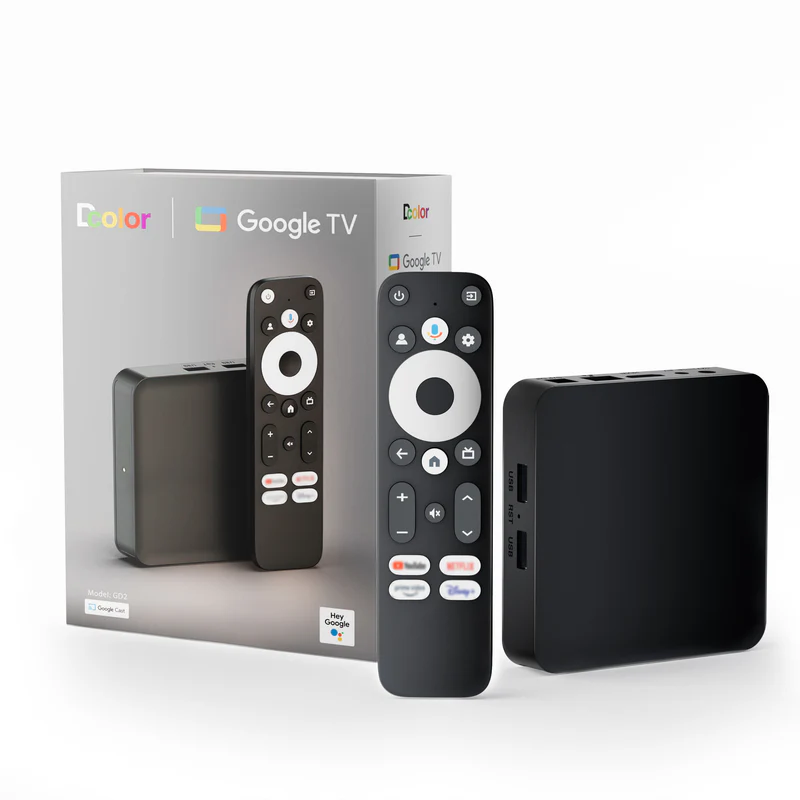
This guide explains how to sideload applications (APK files) onto the D-Color Google TV running Android TV OS.
It uses your device’s exact menu structure, confirmed step-by-step. This method also works on most other Google TV devices including Chromecast with Google TV, Onn Google TV box, Mecool boxes, and general Android TV OS devices such as Xiaomi Mi Box, NVIDIA Shield, and Ugoos/AMLogic TV boxes.
Sideloading allows you to install apps such as Kodi, VLC, SmartTubeNext, IPTV players, and tools not available in the Play Store. The process is safe and natively supported by Android TV OS.
Table of Contents
What You’ll Need
- D-Color Google TV device
- A USB stick (FAT32 recommended)
- A computer to download the APK file
Step 1 — Install CX File Explorer from the Google Play Store
On your D-Color Google TV:
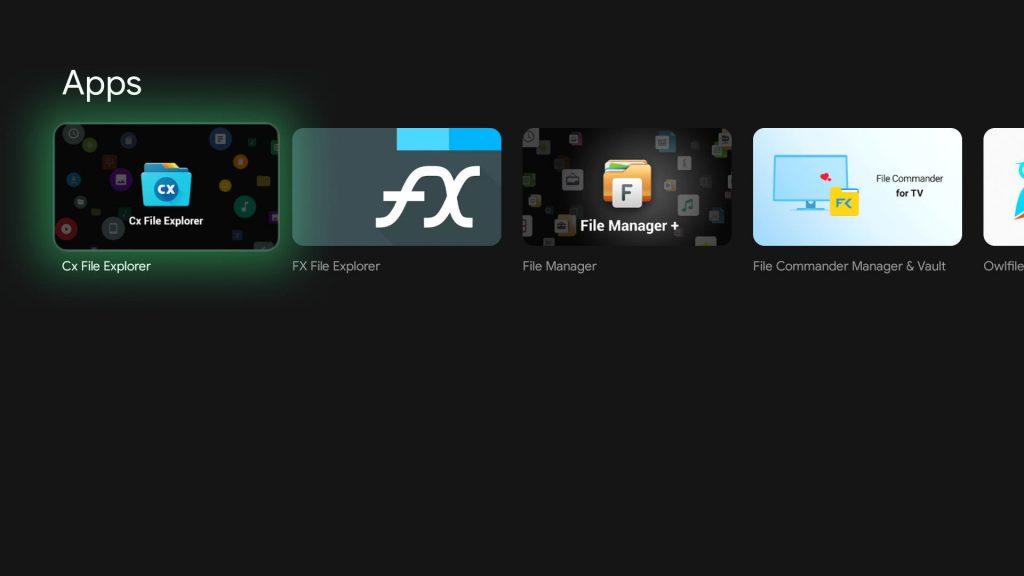
- Open the Google Play Store
- Search for CX File Explorer
- Install it
- When prompted, grant file access permissions
CX will serve as your file manager and APK installer.
Step 2 — Download the APK File
Have a USB drive prepared. FAT32 is the safest format because many Android TV devices can be inconsistent with NTFS or exFAT.
Visit the official website of the app you want to sideload. Example (Kodi):
- https://kodi.tv/download/android
- Choose ARMv7A (32-bit) for maximum compatibility
Most OEM Google TV boxes run a 32-bit userspace even on ARM64 hardware.
Download the APK file and save it to your USB stick.
Step 3 — Insert the USB Stick
Connect the USB stick to the D-Color box.
You may see a notification such as:
“Open CX File Explorer to handle Disk 2.0”
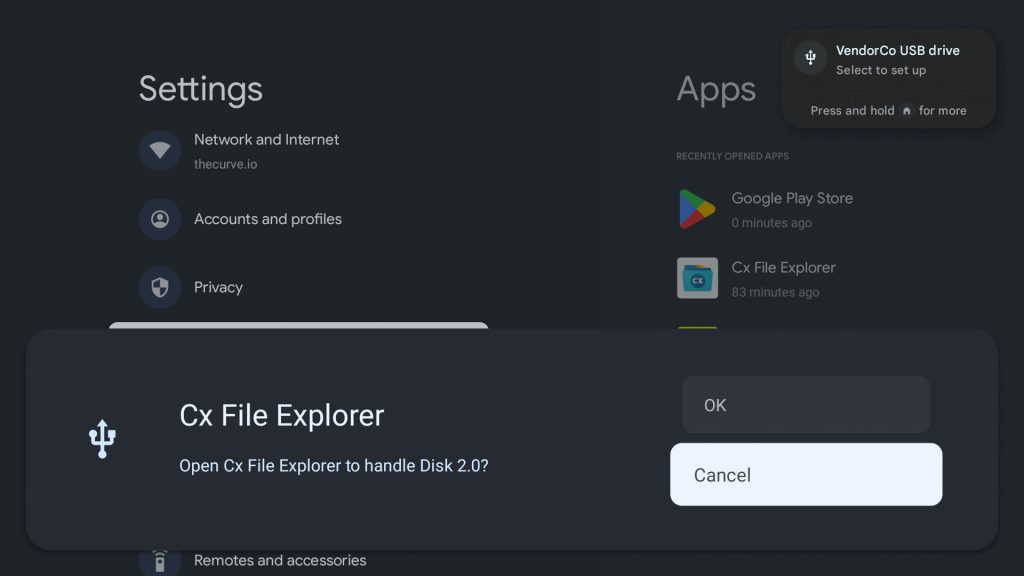
If so, select Open CX File Explorer. Otherwise, open CX manually.
Step 4 — Navigate to the APK File
- Open CX File Explorer
- Navigate to:
Local → USB Storage (or “USB 2.0”, “Disk 2.0”) - You should see the APK you placed on the drive
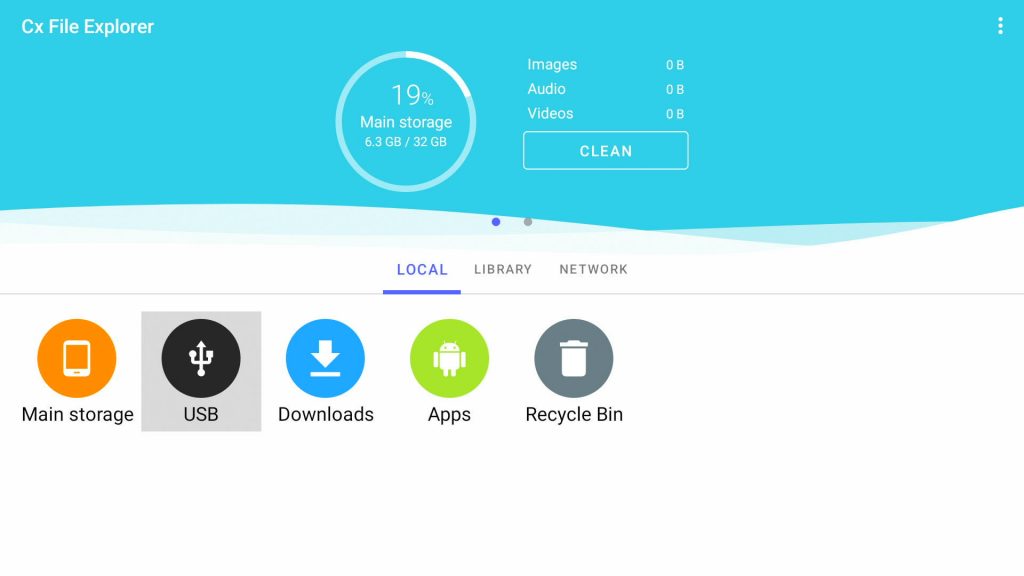
Step 5 — Attempt to Install the APK
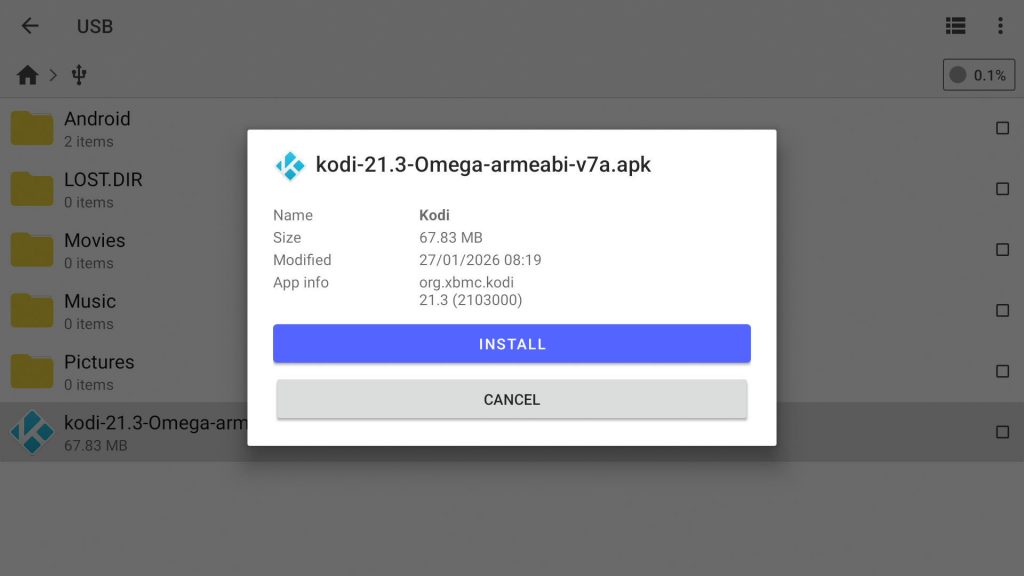
Tap the APK file.
The system may initially block the install and show:
“For your security, your TV is not allowed to install unknown apps from this source.”
Settings
This is normal — D-Color firmware only exposes the sideload permission at time of install.
Select Settings it will take you to Install unknown apps.
Allow the file explorer permission, this will allow it to install any APKs
Step 6 — Re-Install the APK
Go back to CX File Explorer:
- Tap the APK again
- Select Install
- Wait for installation to finish
- Tap Open or Done
Your sideloaded app (e.g. Kodi) will now appear under:
Apps → See all apps
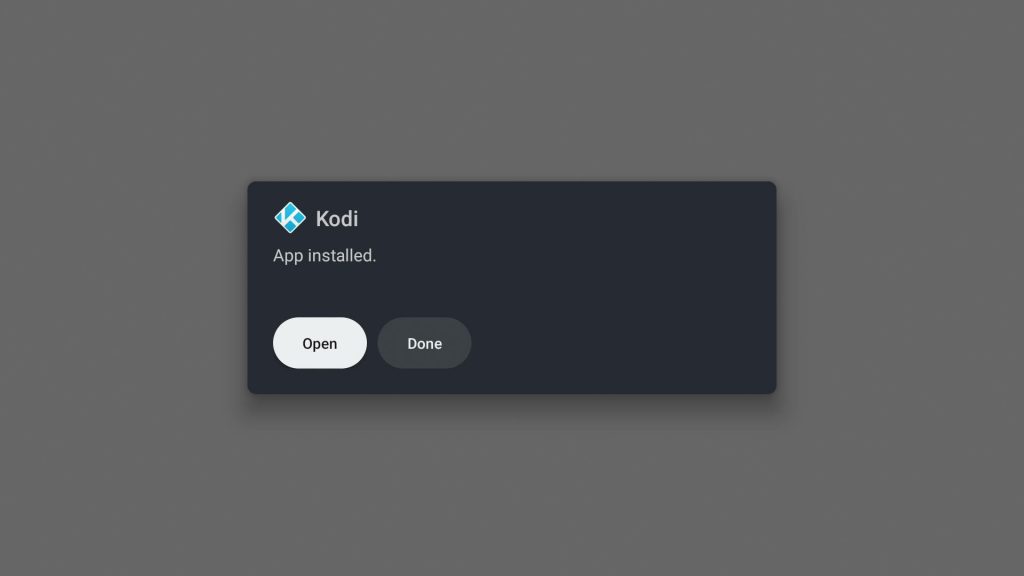
Step 7 — Launch and Verify the App
Open the app from:
Home → Apps → Kodi (or the app you installed)
First launches may take 10–30 seconds while the app initializes.
At this point, it should be fully functional on your device.
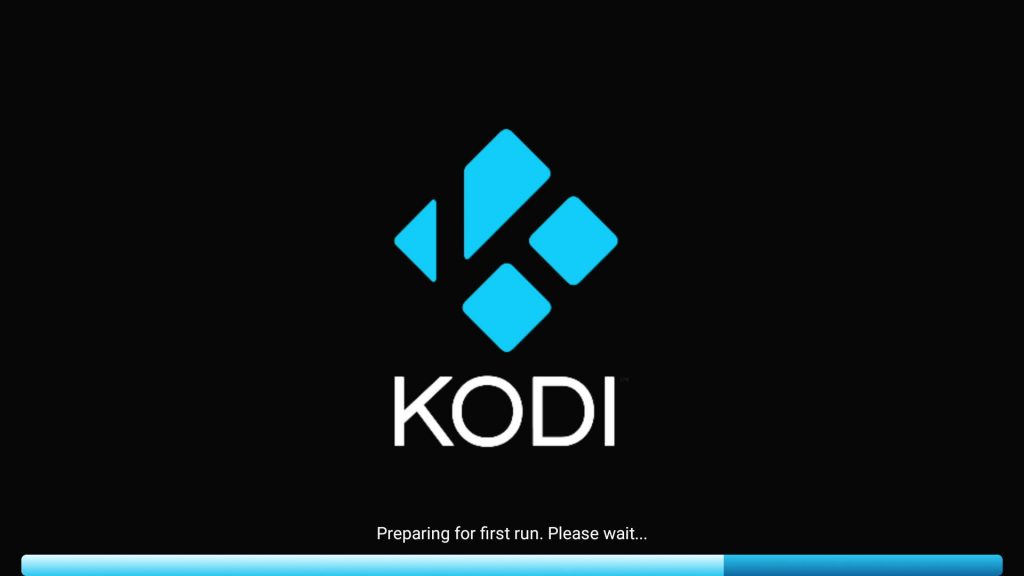
Troubleshooting
“Install” button is greyed out
Ensure CX has sideloading enabled by giving permission to Install unkown apps
“App not installed”
Use the correct architecture:
- Try ARMv7A instead of ARM64
- Ensure the file did not corrupt during download
USB not detected
Format the USB as FAT32. Some devices do not read NTFS or exFAT consistently.
Play Protect warnings
Select Install anyway if the app is from a trusted source (Kodi, VLC, SmartTubeNext).
FAQ
Other installation methods?
Yes you can install via ADB, you will need to enable Developer Options -> USB debugging, connect over ADB and install the APK using your terminal.
Is sideloading legal?
Yes. Installing APKs is allowed.
What you install inside those APKs is your responsibility.
Does this work on other devices?
Yes — this guide applies to:
- D-Color Google TV
- Chromecast with Google TV
- Onn Google TV boxes
- Mecool KM-series
- Xiaomi Mi Box / Mi Stick
- NVIDIA Shield TV
- Most generic AMLogic Android TV OS devices
Can I uninstall sideloaded apps normally?
Yes — just go to:
Settings → Apps → See all apps → Uninstall
Credits / Links
- Kodi Official Download: https://kodi.tv/download
- VLC Android: https://www.videolan.org/vlc/download-android.html
- SmartTubeNext: https://github.com/yuliskov/SmartTubeNext
- DColor Google Tv box: https://smarthomeshopuk.com/products/dcolor-gd2-google-tv-box