Throughout this post, we explain how to write automations and scenes within Home Assistant to control sensors, lights, and other entities in a consistent and reliable way. We cover when to use automations versus scenes, how they work behind the scenes, and how to combine them to create a smarter, more responsive home.
Table of Contents
Prerequisites
Before starting, ensure that:
- Home Assistant is running on your system.
- You have access to the Home Assistant dashboard.
What are Automations and Scenes?
Automations create rules that trigger specific actions based on certain conditions. For example:
- Turning on lights when motion is detected.
Scenes allow you to set multiple devices to specific states with one command. For example:
- A Cinema Mode for your living room, where the blinds drop and the lights dim.
Creating Automations
Accessing Automations
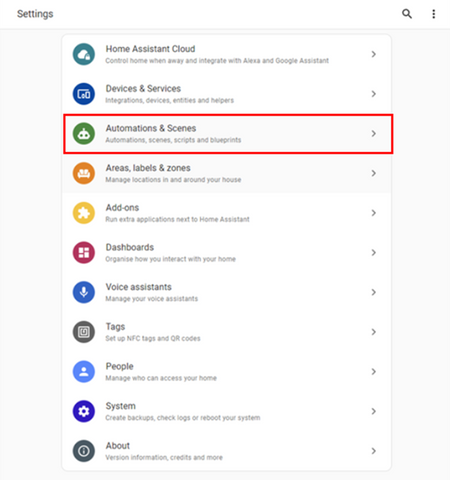
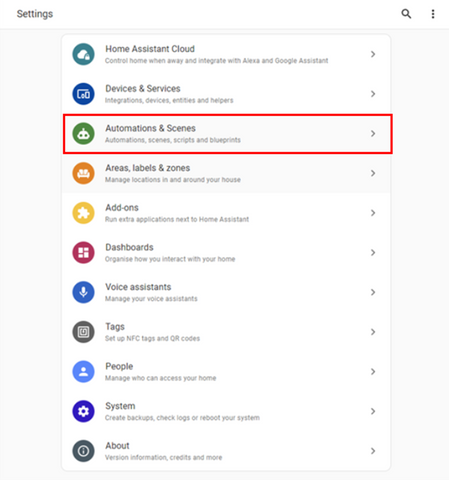
1. From the Home Assistant dashboard, navigate to Settings > Automations & Scenes
2. Click the + Create Automation button, and follow the steps on screen.
Building an Automation
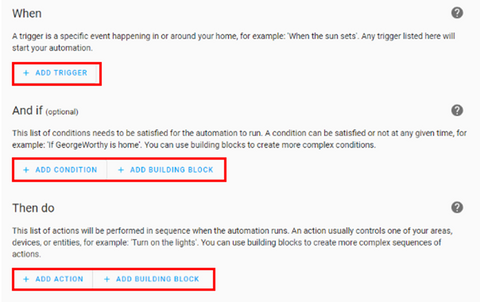
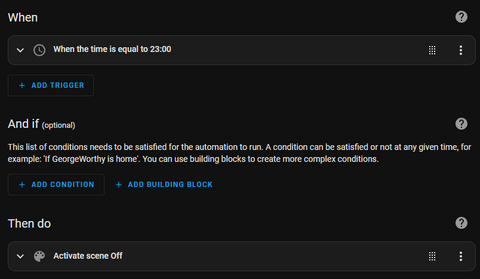
- Choose a Trigger (When)
- Click Add Trigger and select the type of event, such as time, sensor activation, or device updates.
- Set Conditions (And if)(optional)
- Conditions are optional but allow for more control.
Example: Only turn off lights if the sun has set. - Click Add Condition to define these.
- Conditions are optional but allow for more control.
- Define Actions (Then do)
- Click Add Action and choose the desired action, such as turning off a light, sending a notification, or running a custom script.
Creating Scenes
Accessing Scenes
1. From the Home Assistant dashboard, navigate to Settings > Automations & Scenes.
2. Click the + Add Scene button to start a new scene.
Setting Up a Scene
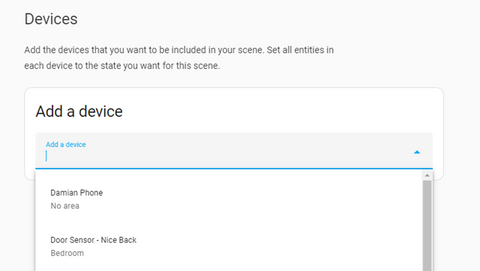
1. Select Entities
Choose the devices or entities you want to control in your scene, such as lights, blinds, or thermostat.
2. Configure States
Set each entity to its desired state.
Example: Set living room lights to 50% brightness and turn the TV on.
Using Automations and Scenes
Running a Scene Manually
- You can create a card on your dashboard to run a scene manually. When you want to run the scene, simply click Activate on the card.

Scheduling Automations and Scenes
Use time-based triggers to run automations or scenes.
Example: Schedule a “Morning” scene to run every day at 6 AM, turning on lights and opening blinds.